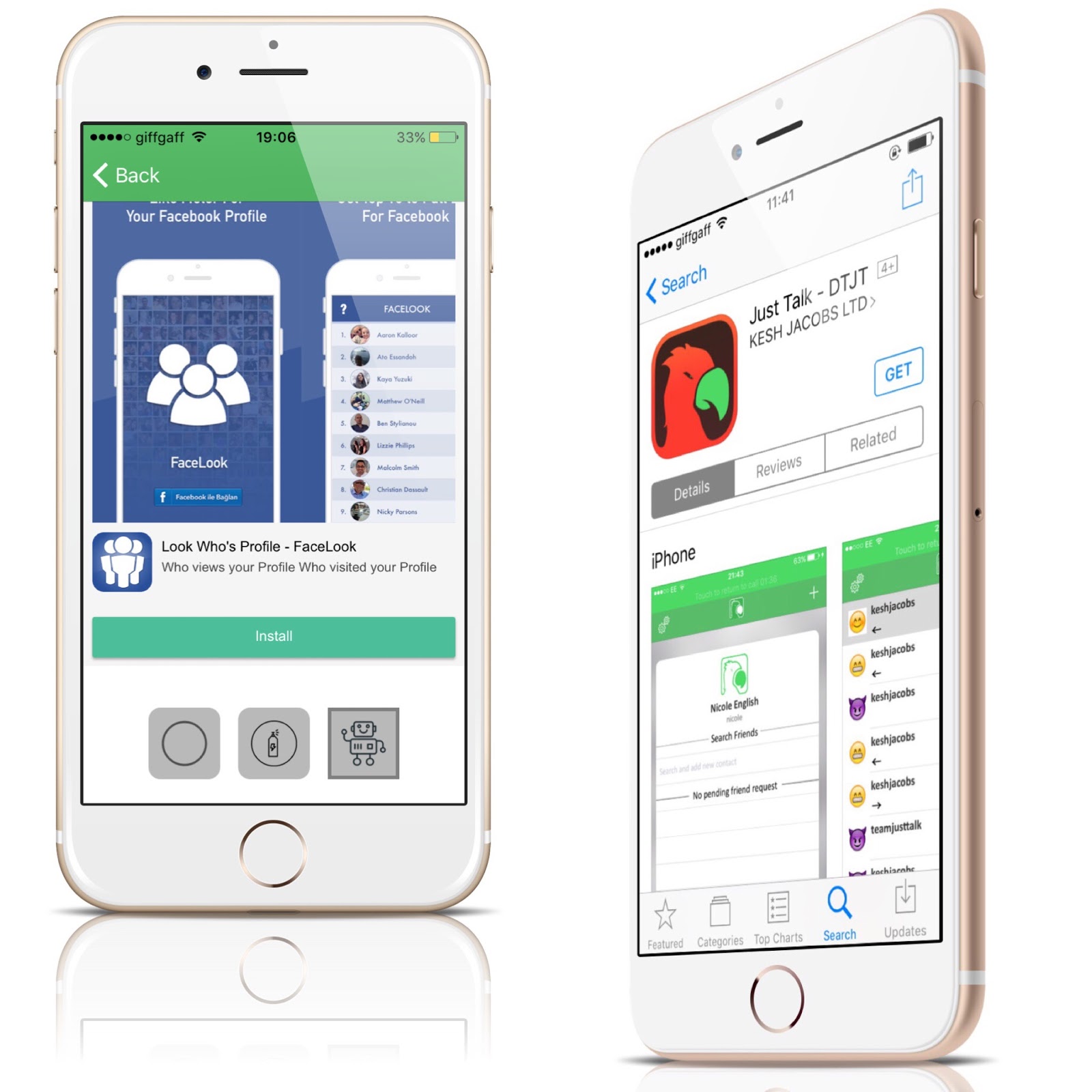
Hello world, hope we've all had a great weekend. I'm guessing most of us have been able to update to the latest Just Talk app version that was made available in the weekend. Recently we learnt that Just Talk would enable Facebook Login and Facebook sign up with Cast recording (Click here to find out more about Casts). However, there's something else thats new and was missed out, Facebook share. This feature will allow users to share both their cast messages and their Just talk contact's cast messages. This should be expected to be made available in the coming update. Wish you a wonderful Week ahead. Happy Talking.
Hello and Happy Sunday to everyone. Some of you may already know this as it has been available since yesterday evening, but to those who don't We have released a new update containing some new features. Bug fixes, messages will now send a little bit faster (less chances for server error). we have expanded our server space because we almost had a full server a couple of days ago, Notification badge issues solved (the numbers would now appear correctly in relation to the number of unopened messages not just a default 7, New icons for "robot" (it may no longer be called robot as we're currently working on a much realistic robot voice), a new filter which is similar to normal voice, but a lot louder (some people complained the normal voice was a bit harder to hear when they're outdoors and want to make their friends listen to a message they received. I hope you all enjoy the new update. Other new ones coming soon. Happy Sunday once again. I wish everyone a wonderful Week ahead!!!
Almost everyone has been jumping into the "Story" wagon lately, It first became popular with Snapchat, Then Instagram decided to jump on the idea followed by WhatsApp. Perhaps I would be doing the same, but nope! I wouldn't. Just talk would do something a little bit different. Introducing "Just Talk Cast". The filter page will no longer be for one purpose only as it was never planned for just filters only. The filter page would now be used for Podcasts, Casts and filter and particular video activities (and no user will not be able to upload their personal videos). Podcasts and videos will not be available till future dates. however Casts will be available in the next coming weeks. The filter page will now be called the "Activity Page". As time goes by, this page would become more and more interesting starting with Casts. Cast may be considered as "Story" because its all about recording a message everyone can see. In our case, it will be audio messages only. The option to record and share cast messages will be situated on the "record page". Amongst your contacts in "Record page" will be "Cast". It would be at the top of your contact list and different from how your contacts look so it shouldn't be hard to spot. To upload Cast to the activity page, You'll simply need to select it in the same way you do when you're recording a message, record your message and hit the "send" icon. Check your Activity page to view cast messages by you or any of your contacts. You would also be able to see how many times your cast message has been played from. So ladies and gentlemen, Tell me, how interesting is That!?
Good news for those people who have had hard times when it comes to signing up and logging in and those in futre who will not have those hard times with the app. Soon we would be able to sign up and log into our already existing account (as long as it is connected to facebook). As its now too old school to oldschool and time consuming to spend a few seconds to sign up/ fill forms, I have decided to integrate fcaebook to Just talk - DTJT. Time is money anyways so I guess we all have good excuses (well thats's my excuse).
I am part of my app and in many cases I am Just Talk as I represent the all the app. So as your learn about the app you get to learn about me also and some of the things I get up to. Yesterday I got an apportunity to give a speech at a society meeting at the university of liverpool (I was once a member of this society. Liverpool Entrepreneurship Network Society). It felt good to meet fellow aspiring entrepreneurs and app developers. I also recieved wonderful feebacks also and was glad to asist in anyway I could. There were times where I was in that situation also, when all I had was the idea and no product to show. Most ideas stop at just an idea even after all the possitive feedbacks they may recieve. Many times it is as a result of lack of funds and lack of connections as sometimes it's just about meeting the right people. Amonsgts the feebacks I got was how stressful it was to signup. also I was informed signup page wasn't too friendly. Luckily I had already started working on that. The fun days have only just begun but the struggle still continues. have a wonderful weekend all!...
For the already existing users who may have already noticed or not, the settings page/screen, the profile page/screen and the record page/screen seems to have a very similar theme. That theme is what we call the blurry effect. All three pages mentioned above apear to be floating on some silver patch. If you touch any part of the silver patch, you would be taken back to the back to the Homepage/landing page/timeline page of the app. Some users do not know how to get back to the timeline page once they've clicked on any of the icons at the top of the screen. The idea if the blurry effects which will be optimised in future indicates that all three pages mentioned above apear on top of the home screen/page. The pictures below higlighes the arears. Try now to explore.
Sincere apologies for not being able to post in a while, I have been unbelievably busy for the past few days.. But anyways let's go back to what we came here to read.
So far we've learnt about the app screens, how to add new friends, how to listen to your messages and how to send messages. As one of the app's major features is the ability to change how you sound we've decided to teach you how to do that in this post. This would probably be fun for most people. Using the voice filters is relatively easy also. To use to filters in the app we have to be familiar with the filter page (picture would be shown below). Getting to the filter page is really easy. once you've been logged in the app, simply swipe left from any page/screen in the app and you would be taken to the filter page which would contain a selection of filters (more would be added as time goes buy). select anyone you please and hit the "back" icon to go back to timeline page/screen, Record a new message and experience the difference. Note: upon selection of desired filter, a text would be displayed at the bottom of the screen showing the name of the filter you have selected.
Another way to get to the filter page/screen is from the timeline page/screen. Tap on the icon (double arrow pointing to the left) at the bottom right of the screen and you would be taken to the "filter page"
announcement: there might be some delays with one of our updates because we are currently exploring a couple of voice filters and working on the noise some of our users hear in many of their messages.
In the previous post we learnt how to search and add new contacts. Now that we've learnt how to do that, let's learn how to send messages. Just like everything about the app, sending a new message is pretty simple (there will be diagrams to elaborate on me words). Once you've logged into the app, you will notice three icons on the top of the screen from any part of the app except the "filter page" (A more elaborate explanation about this three icons can also be learnt from the previous post and older post). They are located at the top of all but one of the app page and they are called (top left to top right), the settings icons, the profile page/screen icon and the record page/screen icon. For this tutorial we would be talking about the "record new page/screen". More information about the "profile page can also be found in the previous post.
At this point we would love to assume that you have made some new friends or just have your old ones on the app. Perhaps I am one of your new friends (keshjacobs is my username on the app, feel free to add me). So back o the matter at hand. You have made some new friends and you wish to start talking to them. Or you have already received one or more messages from them and you wish to reply (if you add me "keshjacobs" I would most-likely have already send you a voice note saying a big thank you for adding me and downloading the app). Once again we return to the reason you might be reading this post. To send a new message, simple tap on the icon on the top right corner of the screen (the record new icon). you would then be taken to a page (the record page) showing a list of your contacts and a button for recording new messages (note the main three navigation icons would still remain at the top of the screen). To record a new message simply tap on the person you wish to send a message to (this would tick the circle besides the name) then tap and hold the button below the name to record a new message. let go off the icon once you're done recording your message. Your recorded message will play back immediately then tap "send" to send the message to the selected contact. If you do not wish to send the message you just recorded, simply tap "cancel" to delete it. Taping send will take you back to the timeline page (more details of timeline page in older posts). here you would see the status of the message you have just sent. You will get a notification at the bottom of the screen's page indicating the message has been sent. For best performance and to ensure the message reaches the receiver, please wait in the current screen (timeline screen) until you're notified message has been sent. Once you have been notified about this, the information that says sending besides the receiver's name would change to "sent".